 800-200-3000
This article will cover how to set up Google Alerts for companies and discuss whether or not this free tool is a smart option for your business.
We live in a digital-first world, and your brand’s online reputation can make or break your success.
With consumers, clients, and professional connections sharing their brand experiences everywhere online — from industry blogs and review sites to social media and more — staying on top of the conversation surrounding your company is essential to managing your reputation.
Google Alerts is one of the simplest ways to monitor mentions of your company name online, and it can even help you check out what the competition is doing and find out what’s going on in your industry.
No matter what size company you run — or even if you’re a brand of one — this should be one of the digital tools in your online toolkit.
Do you need to speak with an online reputation management (ORM) expert immediately? Give us a call at 800-200-3000 or fill out the contact form below for a free consultation.
What Is Google Alerts?
Google Alerts is a free service from Google that monitors the web for content that matches the terms you set. When content online matches the search terms and parameters you created, you’ll get an email notification.
Google Alerts Options
When setting up a new Google Alert, you can customize Google search results by specifying a few parameters.
Frequency
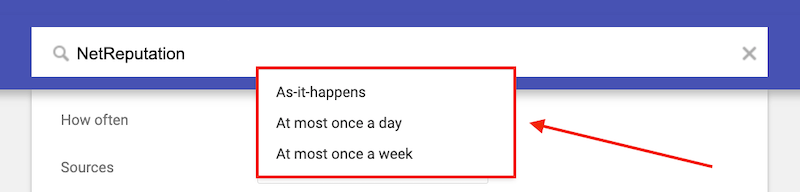
You can choose to get email notifications from Google Alerts as soon as a new result is found, once a day, or once a week. If no new results are found, you won’t receive email notifications.
Sources
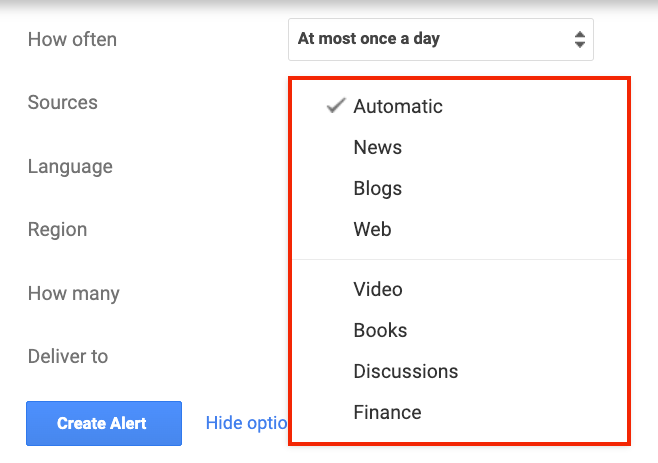
Google Alerts lets you decide what types of content you want to track. The Automatic option lets Google decide what to include in its alerts (seemingly any type of content that includes the search term), and you can also choose from the following:
- News
- Blogs
- Web
- Video
- Books
- Discussions
- Finance
If you only care about certain types of content or you have a broad search term and need to narrow results, setting the source to something other than Automatic can help.
Language and Region
There are several language and region options to choose from. You can also select Any Language and Any Region to capture as many results as possible.
How Many
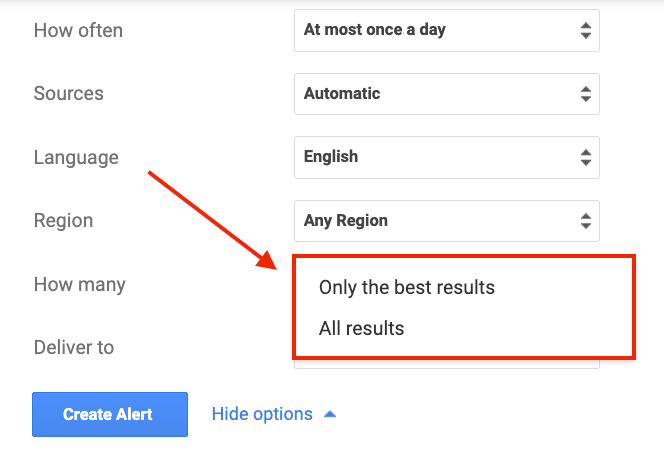
This section only has two options:
- Only the best results
- All results
When starting out, it’s best to select All results so that you don’t miss anything. Once you see the types of alerts you get, you can consider switching to Only the best results to get more targeted, relevant notifications.
Deliver To
The last option is Deliver To, where you’ll select the email address to which you want to receive notifications. There’s also an RSS Feed option, but the most straightforward way to stay on top of relevant content is to set up Google Alerts to email you about brand mentions.
How To Set Up Google Alerts
In this section, we’ll walk you through how to set up alerts.
1. Go to the Google Alerts page.
Start by going to the Google Alerts page. If you’re not yet signed into Google, sign in now.
2. Create your alert.
Click the search box labeled “Create an alert about…“.
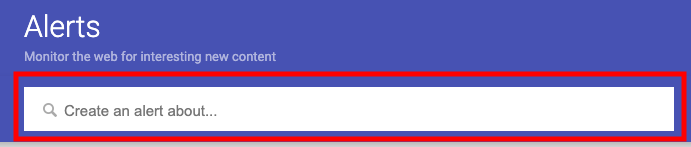
Then, enter your search term. If there are any recent results for your search term, you’ll see them in the Alert Preview below.
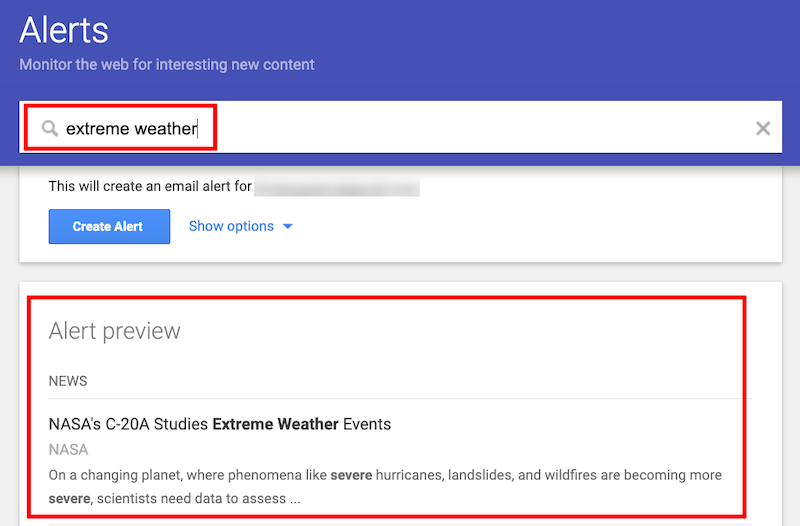
If there aren’t recent results, the Alert Preview will say that. However, this doesn’t mean you can’t or shouldn’t set up a Google Alert.

3. Select your Google Alert options.
Before creating an alert, click the Show Options dropdown menu.
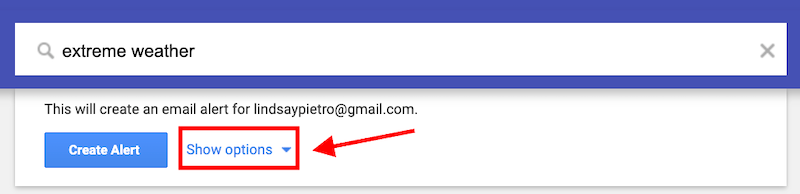
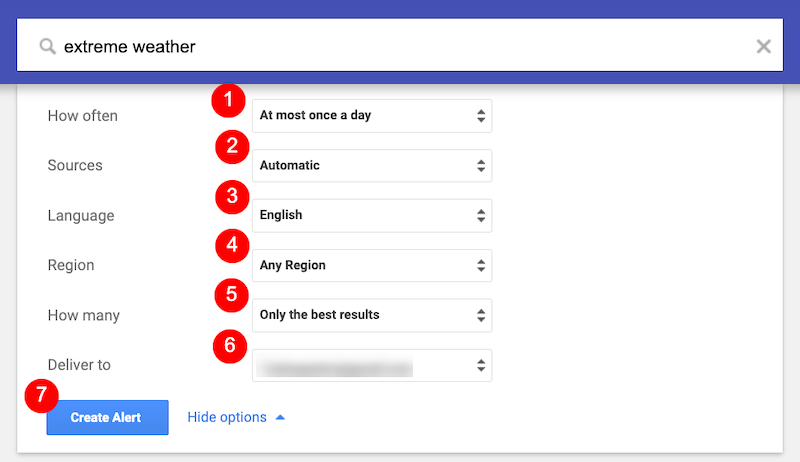
This is where you’ll select the settings we covered above. To recap, here are the options:
- Frequency of email notifications
- Sources that Google will watch for your search term
- Language
- Region
- How many results (only the best or all results)
- Where the results will be delivered (Google email address or RSS feed)
When you’re finished, click the Create Alert button.
How To Edit a Google Alert
Once you’ve created a Google Alert, you can go back at any time to edit it. Here’s how to do that.
1. Go to the Google Alerts page.
Start by going to Google Alerts and signing in to your account.
2. Open the edit menu.
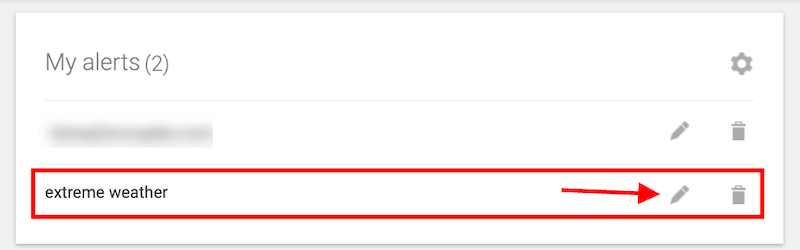
Click the Edit icon (the Pencil icon) to the right of the Google Alert you want to update.
3. Adjust the settings.
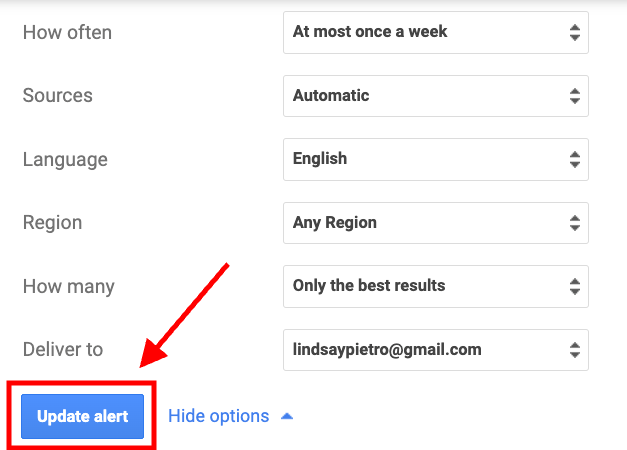
Now you can update the Google Alert using the same options you had when you set it up, including email frequency, sources, and more. Click the Update Alert button when you’re done.
How To Delete a Google Alert
You can delete any of your alerts at any time. Here’s how.
1. Go to the Google Alerts web page.
Head to Google Alerts and sign in to your account.
2. Delete the alert.
Click the Delete icon (the Trash icon) to the right of the Google Alert.
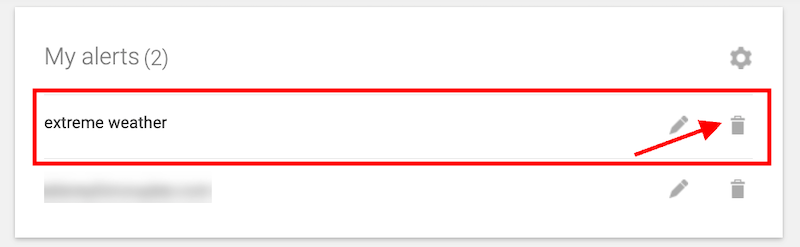
This will immediately delete the Google Alert, but you can undo the deletion before you navigate away from the page.

Should You Set Up Google Alerts for Brand Monitoring?
There are many reasons to use Google Alerts to monitor your business name online. Here are just some of the ways that the Google tool helps businesses.
Monitor Brand Mentions in Real-Time
Google Alerts allows you to stay informed whenever your company name, product name, or services are mentioned online. This allows you to stay ahead of online conversations, respond promptly to negative comments, and control the narrative that influences your brand reputation.
Discover Media Opportunities for Your Niche
By creating multiple Google alerts for your industry and niche, you’ll be able to identify opportunities the moment they arise. You can use alerts to discover conversations you want to be involved in and pitch ideas to industry news sites, for example.
Track What Competitors Are Doing
You can also use alerts to monitor your competitors. This lets you keep an eye on their social media marketing strategies, coverage on news sites, product launches and more. You can then come up with content ideas and marketing campaigns that are more likely to compete.
If you want to stay ahead of the competition and discover how customer feedback, news articles, and more are impacting your online reputation, call an expert at 800-200-3000 today.
Professional Brand Monitoring
We love Google Alerts because it’s a free tool that anyone with a Gmail account can use. It lets users take control of their online reputation in a number of ways:
- Media monitoring to track mentions of your brand
- Hearing customer feedback as soon as a review is left
- Assessing customer sentiment
- Discovering industry trends and opportunities
However, for some brands, alerts aren’t enough to build a well-rounded media monitoring and ORM strategy.
At NetReputation, we can help you take the valuable insights you’ve gotten from Google Alerts to fortify your brand even more. With services like content removal, review management and search engine optimization, we know exactly what it takes to impress the public and elevate your brand.
To speak with an ORM expert today, call us at 800-200-3000 or fill out the contact form below.
 800-200-3000
 Rated #1 by Newsweek
 4.9/5 Trustpilot
 100% Confidential